



Check the selected station before saving. Use the controls available to your account. Read confirmations before changing a live station.
Find revenue and affiliate tools
Only the account owner can use these controls.
- Open Monetization. The cards shown depend on your store and mobile-app advertising eligibility.
- Use Revenue for the store payout area, Manage store for products, Sign up for the affiliate portal, or Manage AdMob for the mobile ad settings shown to your account.
- Check the service's current terms before relying on commission, payment or advertising details. Store payments and payouts require their own setup; ad settings do not guarantee delivery or earnings.
These screenshots use sample data and English labels; what you see may differ with your language and permissions.
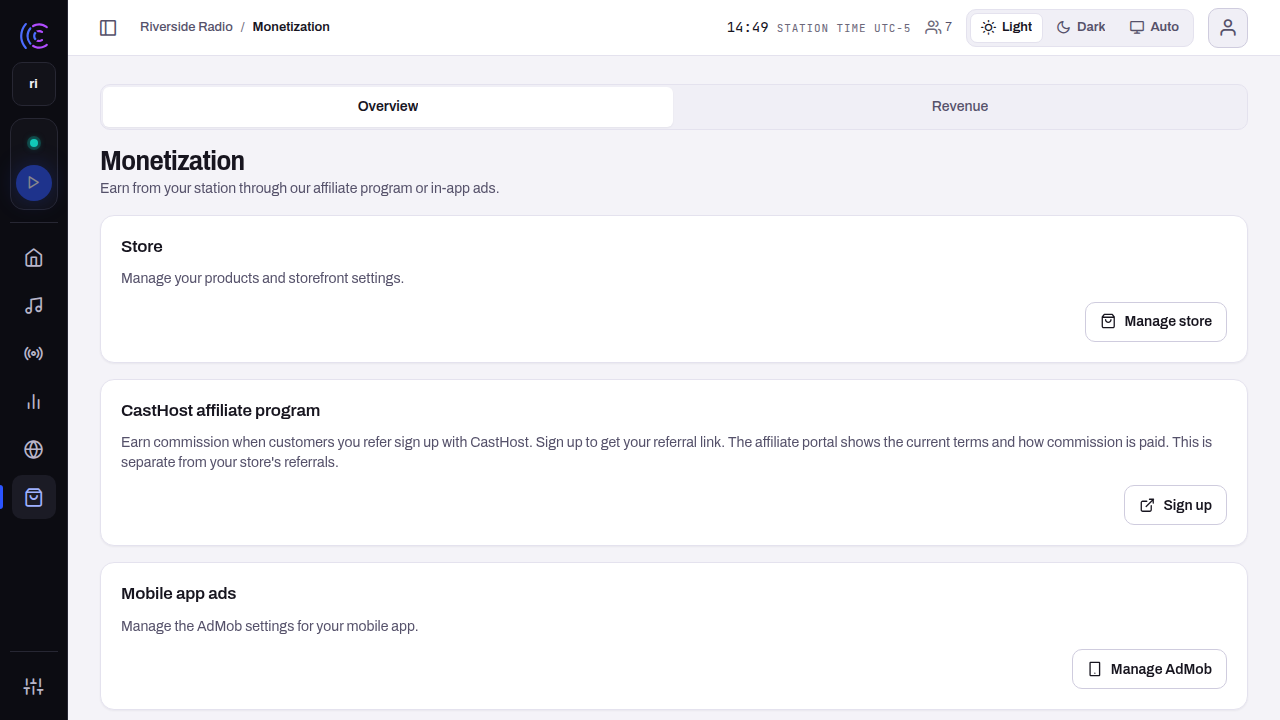 The Monetization overview links to your store, the affiliate programme and mobile app ads.
Create and manage products
Available to owners and DJs with the required permissions.
- Open Web & App > Store > Products. Search or filter by Physical, Digital or Paywall, then choose Add product or an existing product's edit action.
- Enter the name, price, image and descriptions. Physical products use category and stock fields; digital products need their file; paywall products use billing-cycle and trial fields. Product options have quick-add and list-management controls inside the form.
- Submit the form and check the result in the product list. Activation, deletion, subscriber management and subscriber email settings are separate actions. Creating a product does not open a public store: store enablement and Stripe Connect onboarding are also required. Never assume a payout is automatic.
Submitting an incomplete product shows all missing or invalid fields together. Prices must be finite numbers of zero or more. Correct the fields and submit again; a failed validation sends no product write.
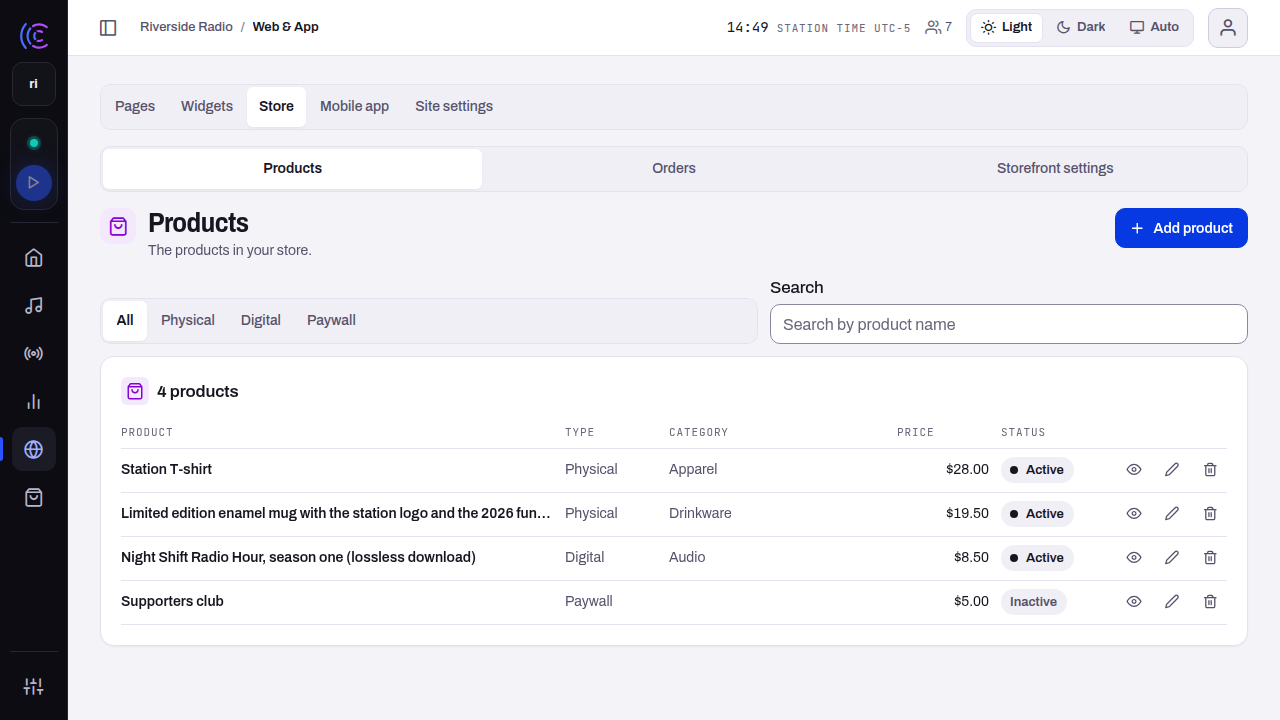 The product list shows each item's type, price and active status beside its row actions.
Set up your storefront
Available to owners and DJs with the required permissions.
- Open Store > Storefront settings. Review the store-enabled setting, delivery options, currency, accepted countries and customer email fields. Changing currency can affect prices; read the warning before saving.
- Save the store form. Store-page images have separate upload and removal actions. A saved image does not confirm that the other store settings were saved.
- Complete Stripe Connect onboarding before opening a public store. It requires a paid plan, as do payouts. Review referral and commission controls separately; recording a referral settlement does not transfer money. Website appearance and domain settings have their own forms.
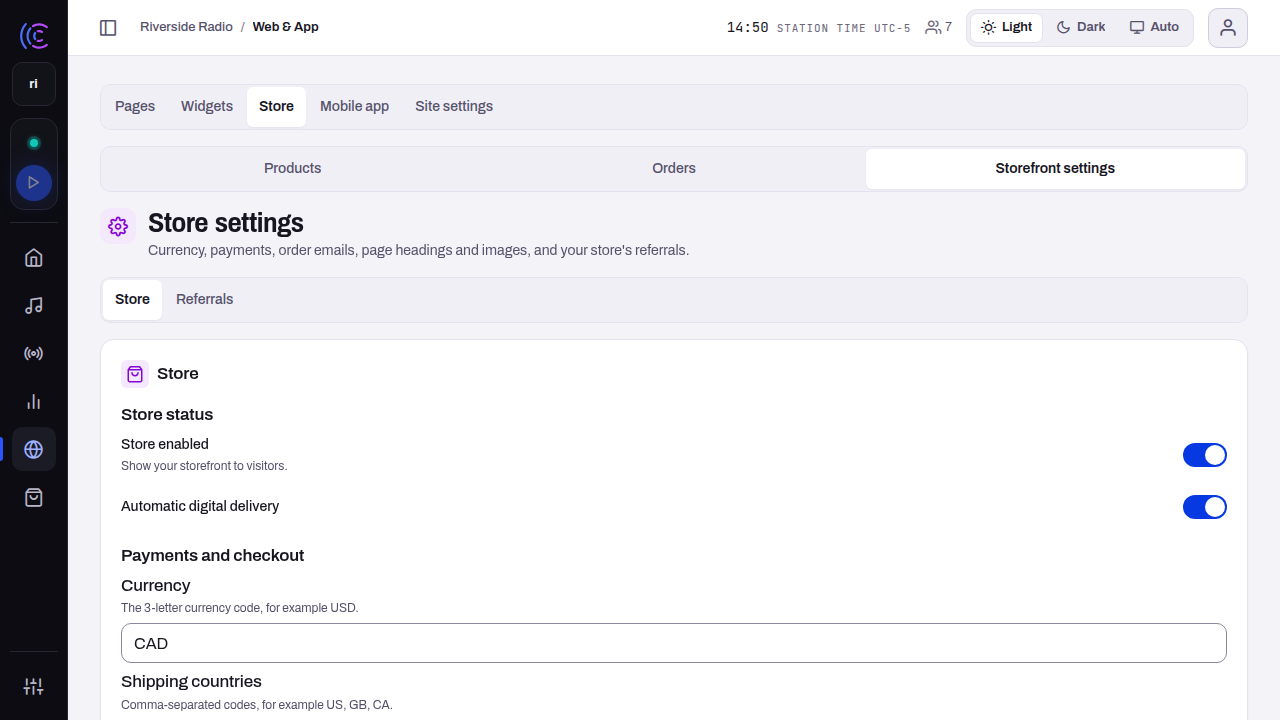 Storefront settings groups the store switch, automatic digital delivery and checkout currency.
Find and open an order
Available to owners and DJs with the required permissions.
- Open Store > Orders. Use the available search or filters and pagination to find the order.
- Check the order's identifier, customer and status, then open its details. Product creation is a different task.
- Use the order-detail page for shipment or delivery actions. Reading an order or changing fulfilment status does not issue a refund or move money.
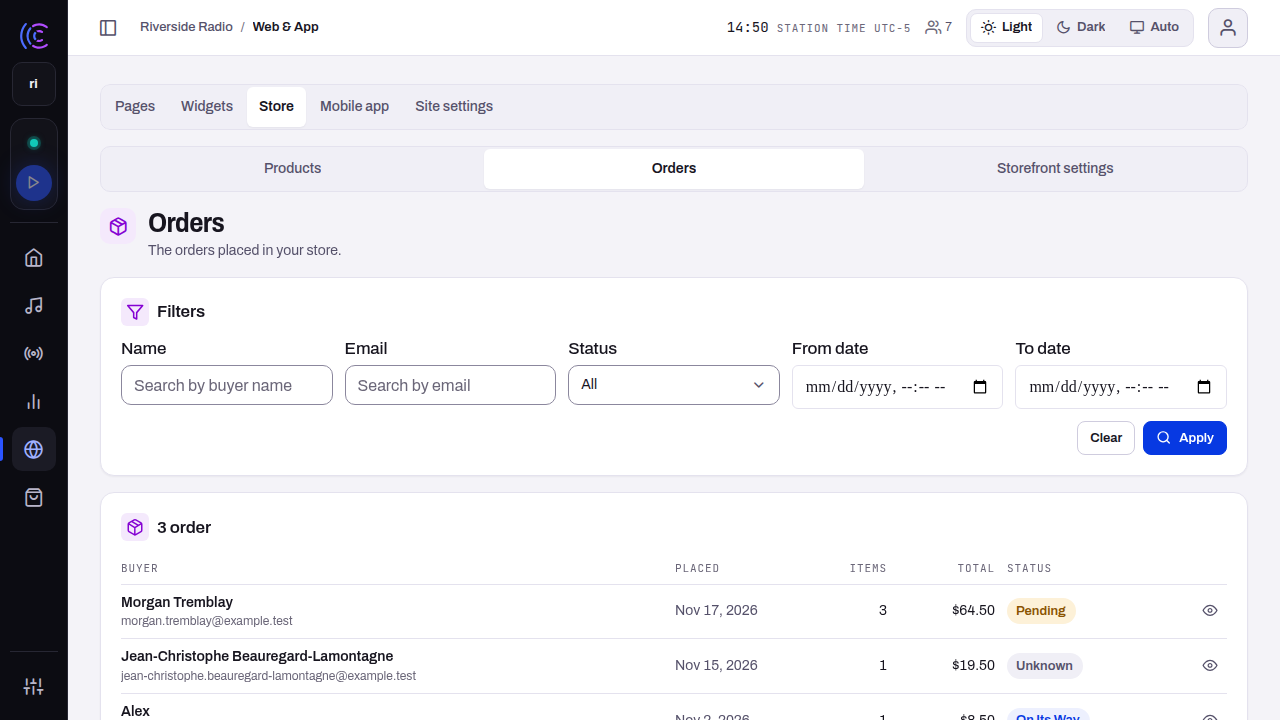 Order filters sit above the buyer, date, total and status for each order.
Record an order's shipment or delivery
Available to owners and DJs with the required permissions.
- Open an order from Store > Orders. Check the order identifier and its items before changing anything.
- Review customer, payment and fulfilment details. Use the shipment or delivery action only when it matches what happened, and complete the fields and confirmation shown.
- Check the updated status. If the order cannot be found or the update fails, return to the order list or retry the read. Do not interpret an error as confirmation that the order shipped. These actions do not pay out funds or refund a customer.
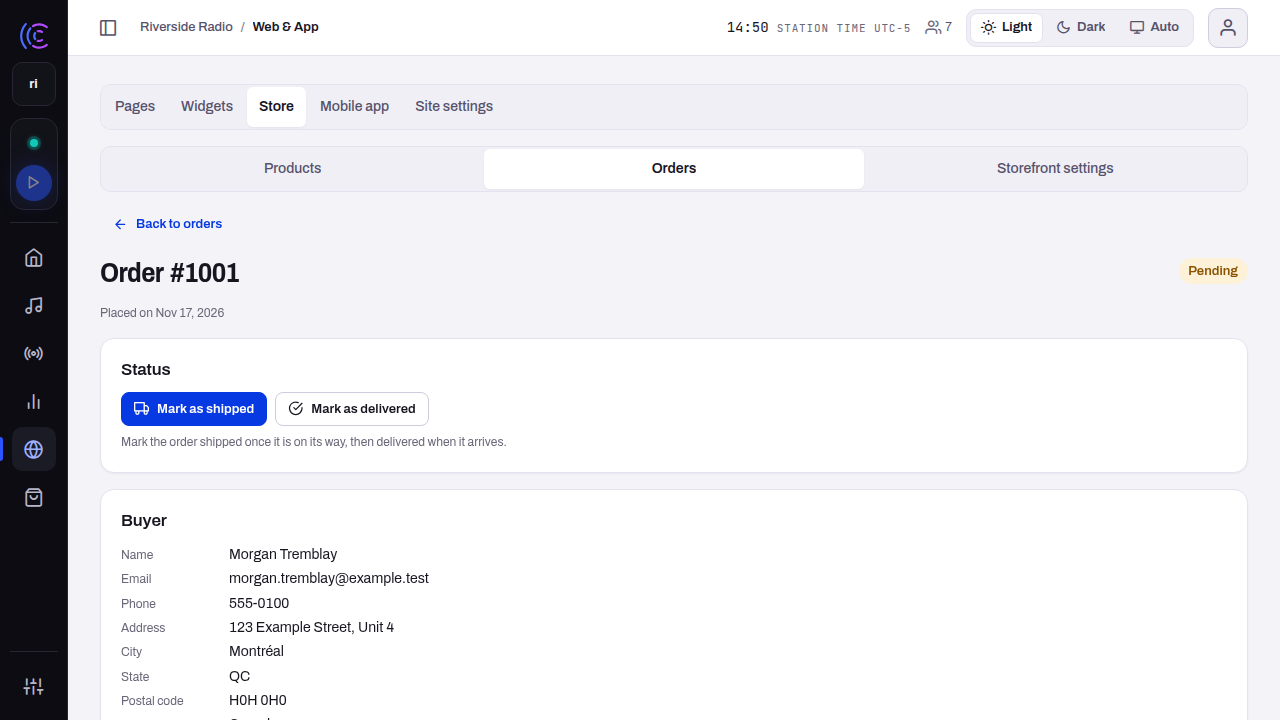 The order details page shows the current status and buyer information below the shipping and delivery actions.
Review store revenue and payout setup
Only the account owner can use these controls.
- Open Monetization > Revenue and read the balance, revenue and account status available for your store.
- If Stripe Connect setup is required, follow that setup flow. A paid plan is required for Connect and payouts. Check the destination account and amount before confirming any payout action offered.
- Read the result and transaction state after a request. Do not count a submitted request as funds received. Missing or unavailable figures do not mean a zero balance. Never send payment credentials to support.
- If Stripe returns you to renew a link, choose Renew Stripe link, check the selected account number, then choose Renew existing link. This requests a link for your existing payout account and never starts a new account. If the account is missing or changed, reload or contact support. First-time setup uses Connect payment processor and its own confirmation.
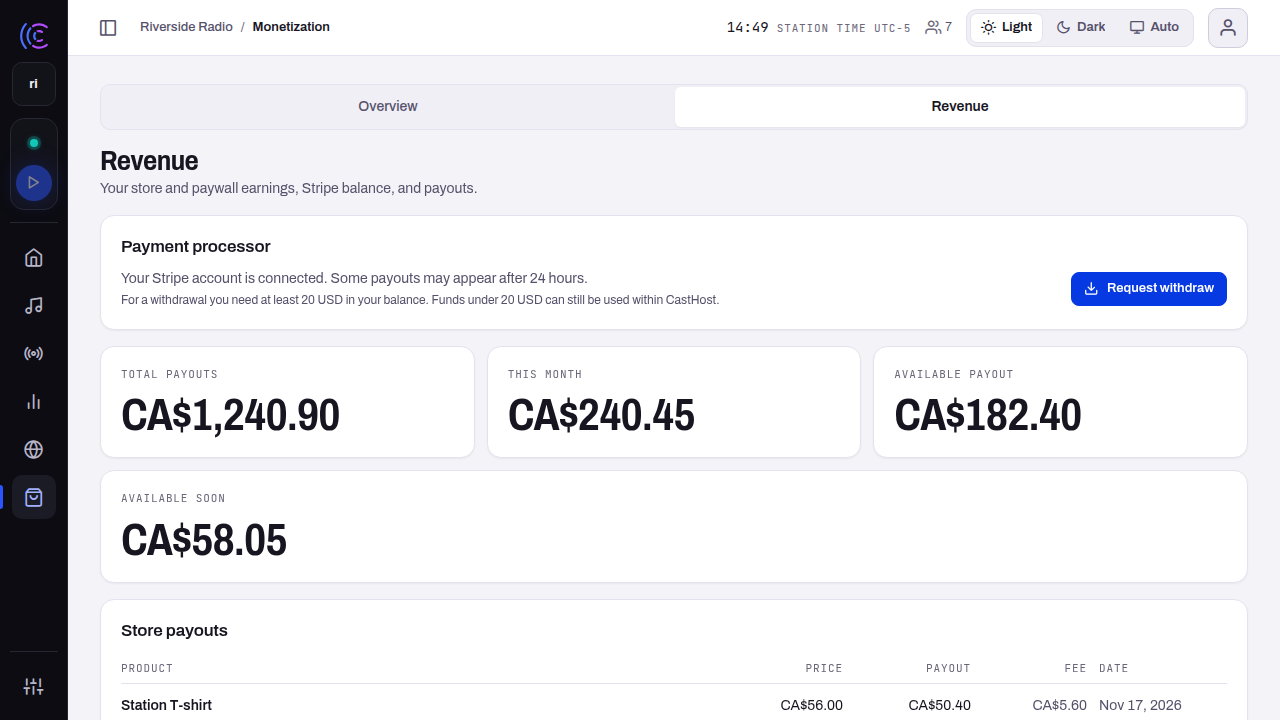 Revenue separates available payouts from amounts that will be available later.

