



Find your station overview and support
Your station overview is on Desk in the new dashboard. Check the selected station before changing anything. For help, open the account menu and choose Support centre. Owners can also open Station settings, Language and Setup wizard when available. Owners with more than one radio account can use the account name on desktop or Switch account in the phone account menu. DJs ask their owner to confirm the station.
The pages you can open depend on your account and permissions.
- Open Desk. The state reads On air, Offline, Checking... or Status unavailable. A failed read is not Offline, and it hides stale track and listener details. On-air status alone does not prove audible sound.
- On the Desk, song progress shows elapsed and remaining time when your station provides them. A live DJ or a song without a known length shows elapsed time only. Up next shows the next known song and artist. If timing is unavailable, the Desk says so. When your station is off air, the progress area is hidden. At a known song end, the Desk shows the next known song while it checks the station feed.
- Under Streaming server, use Start, Restart or Stop only when you intend that change, and read its confirmation. The confirmed stop button says Stop station. Stop takes the station off air until restarted. These controls are on the Desk; owners also have them in Station settings. DJs need server-control permission.
- Use Quick actions for the destinations your role can open. Storage details shows the account breakdown; Upgrade storage opens the purchase destination when offered. Storage is now on the Desk rather than in the header.
- Review Recent Tracks and Public Stream Links. Online, copy the listen address or download PLS/M3U. Offline, no public address is shown. The preview player is local listening, not a station-start control.
- Encoder connection has copy controls and a hidden password. Only owners see the source password and Change passwords. A DJ with Encoders access uses their own DJ username and password. Get your station ready appears for incomplete owner setup.
An owner without a station opens Your account, with Profile and the destinations available to that account. Profile stays in the signed-in owner’s account menu. For a radio station’s audio problem, check your encoder and a public listen link, then open Support centre without sending credentials.
The greeting uses your DJ display name when you are signed in as a DJ. While the server restarts, its state says Restarting station and station-control buttons are hidden until the operation settles.
When the sidebar is open, station controls move onto another row if needed.
These screenshots use sample data and English labels; what you see may differ with your language and permissions.
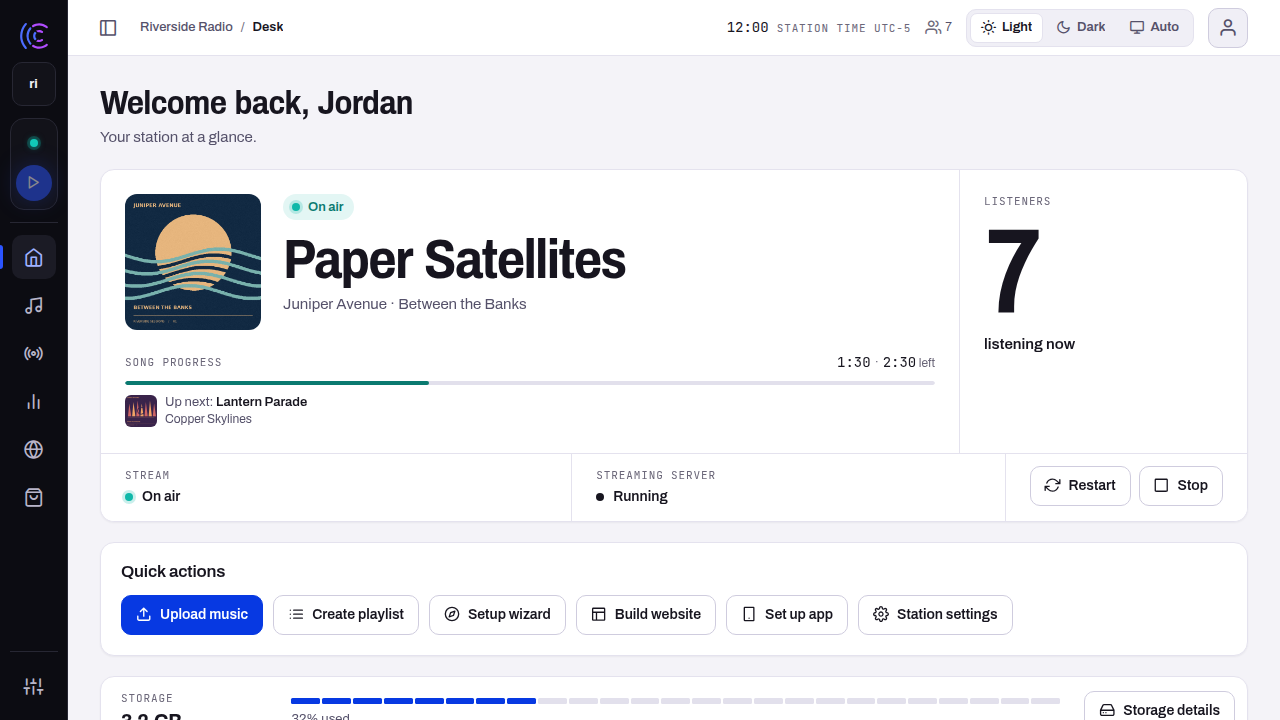 Desk shows the current song, its progress and the listener count above the station controls.

