



View listener and track statistics
To check listener statistics in the new dashboard, open Stats > Live listeners for the current audience, History for listener reports over time, or Track statistics for the tracks that played and their audience. Choose the same reporting period before comparing numbers. The live listener connection count and historical track reports answer different questions. Top track comes from the ranked track-statistics table, not the most recently played song.
Available to owners and DJs with the required permissions.
- Open Stats > Live listeners. Listening now is the current connection count and refreshes about every 15 seconds while the page is open.
- By country and By device rank up to eight rows each. Their bars compare each row with the top row; the number beside it is the count.
- Connected listeners lists location, IP address, user agent and listen time when the stream server provides them. A notice explains missing connection details.
No data means the count could not be read. 0 means nobody is listening. Network and location details do not identify an individual listener.
These screenshots use sample data and English labels; what you see may differ with your language and permissions.
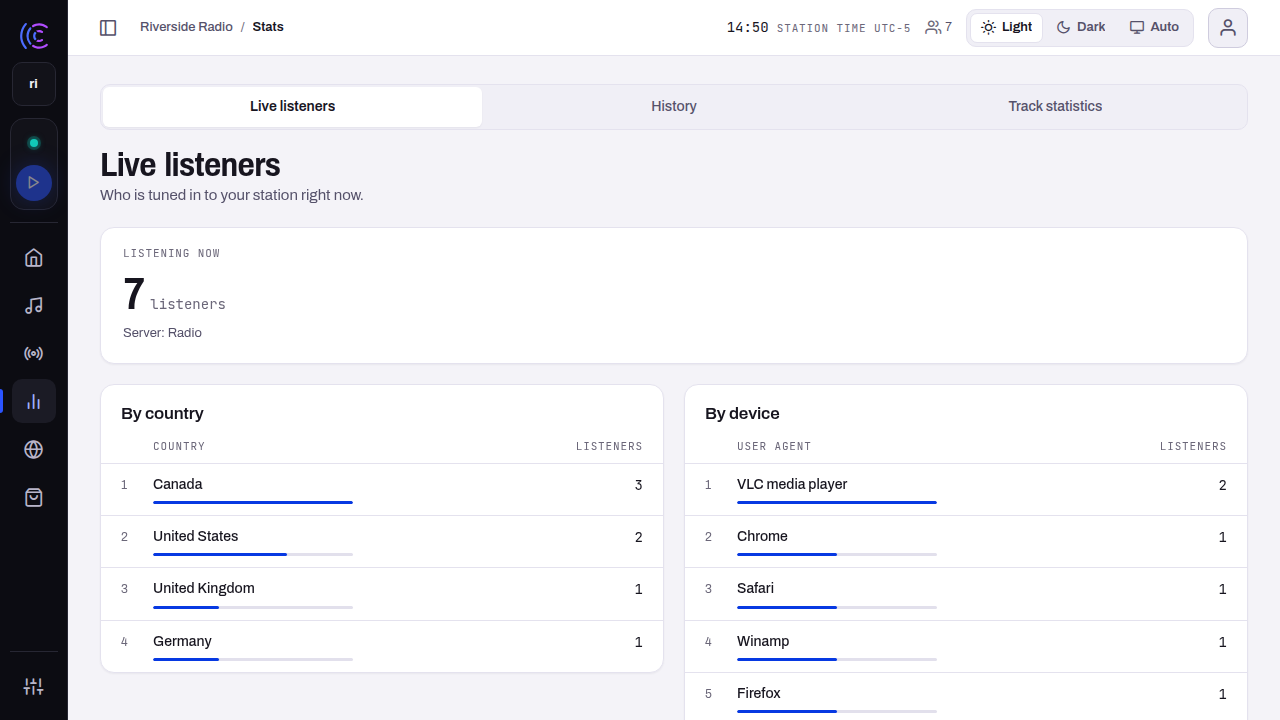 Live listeners shows the current connection count above the country and device rankings.
See how people listened over time
Available to owners and DJs with the required permissions.
- Open Stats > History and choose 7 days, 14 days (the default), 30 days or Custom. On a phone, use Date range. For Custom, set From and To and choose Show. The range can cover up to 366 days and cannot end in the future.
- Read Listening hours, Unique listeners, Sessions and Avg session. Top countries, Browsers and Players and apps show period rankings. Country rows include connected time. Bars compare each row with the top row.
- Session length groups listening from under 30 seconds to over 2 hours, with the most common group named above. Download CSV saves the figures and lists for your selected period.
No data means the report could not be loaded. A value of 0 is a confirmed zero. Try again if the data is unavailable. Totals cover the selected period; this page has no day-by-day chart. Long periods can take longer to load.
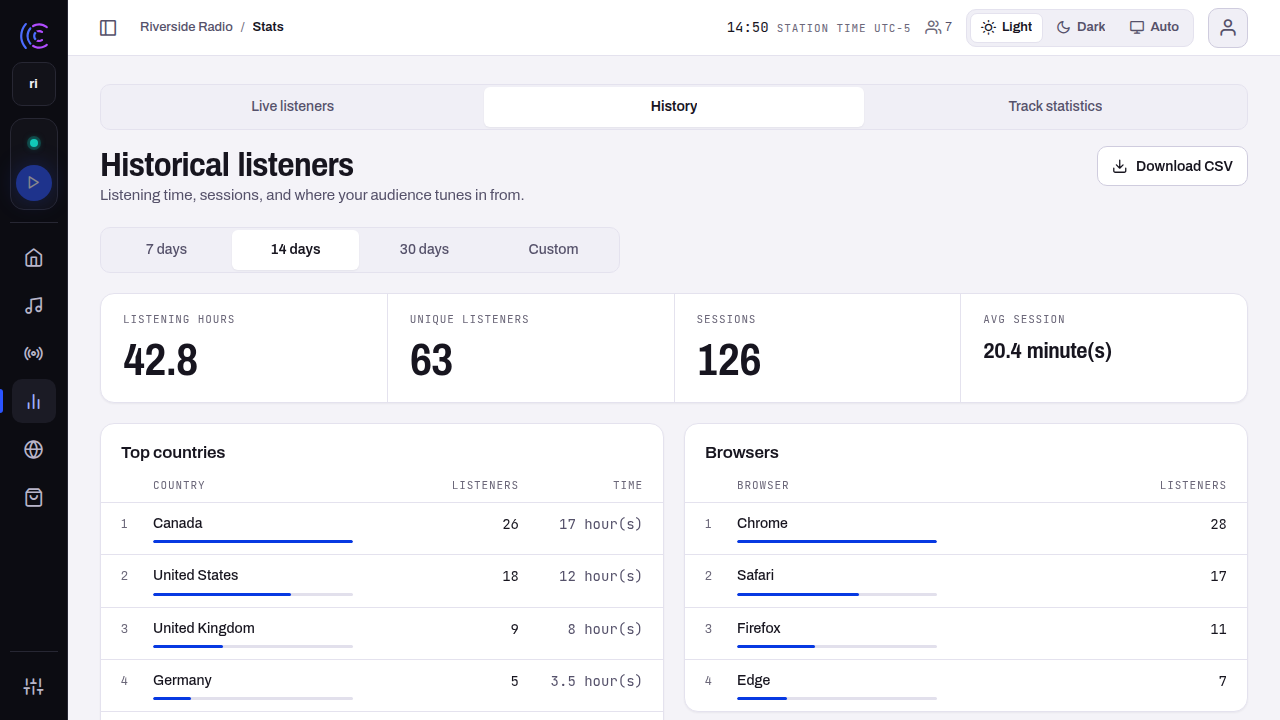 History shows listening totals and audience rankings for the selected 14-day period.
Review what played and its audience
Available to owners and DJs with the required permissions.
- Open Stats > Track statistics. Choose 7, 14 or 30 days, or Custom, using Date range on a phone. Custom has the same 366-day and non-future limits as History.
- Read total plays, unique tracks, average plays per hour, peak listeners, average length and most played track where data is available. Most played ranks play count; Top tracks by airtime ranks time on air.
- Review the play-history rows and use Download CSV for the chosen period. Missing data is not zero. A track report describes past plays and audience readings; it does not prove that a track caused people to join or leave.
The most played track is the first song in the Most played list for the selected period.
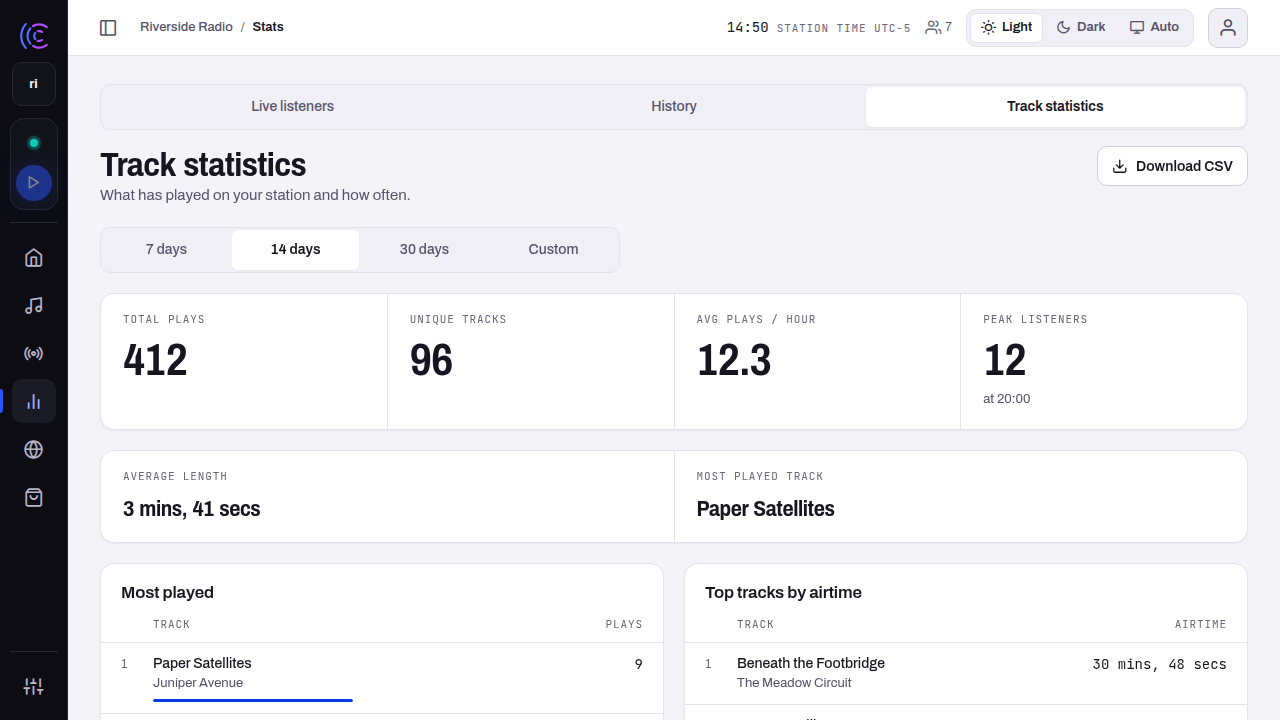 Track statistics separates the most-played songs from those with the most airtime for the selected period.

