



Choose a live-broadcast tool
Available to owners and DJs with the required permissions.
- Open Broadcast to find Web encoder, Encoders, DJ users and Logs.
- Choose Encoders for your broadcasting software, or Web encoder for the browser console.
- Owners manage DJ accounts under DJ users. A DJ sees only the destinations their permissions allow. Station settings are in the account menu.
These screenshots use sample data and English labels; what you see may differ with your language and permissions.
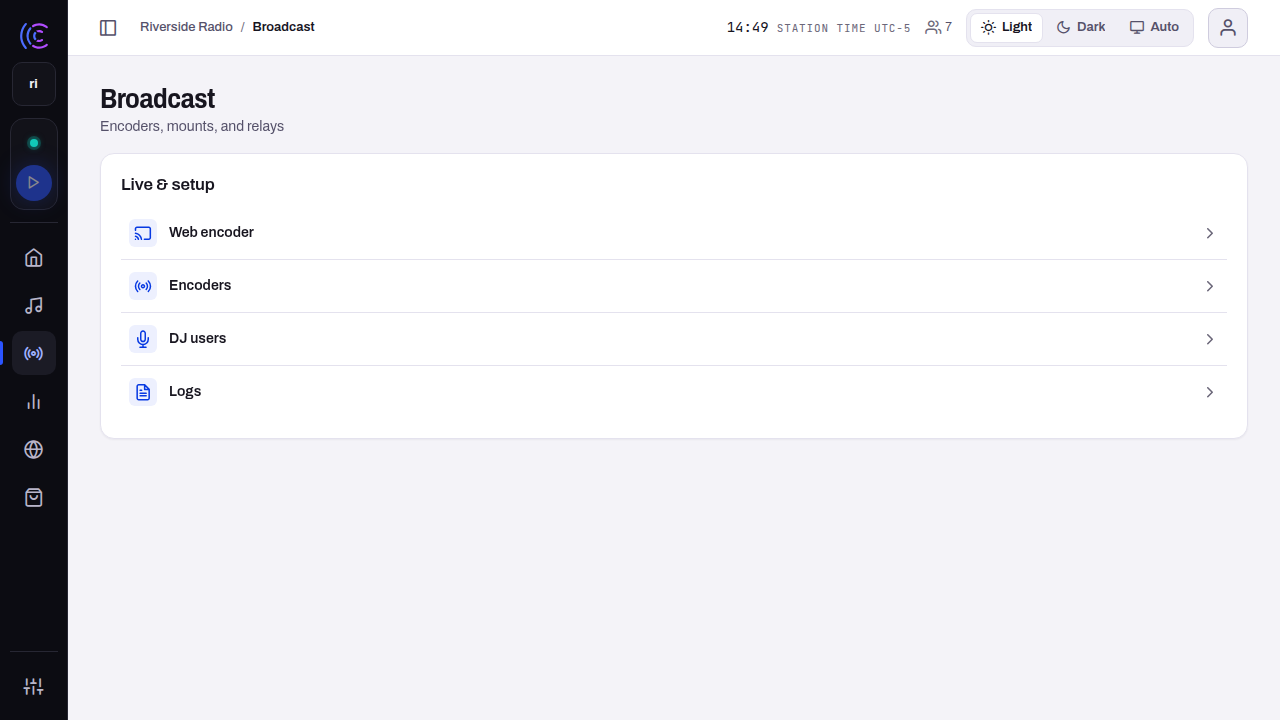 Broadcast groups the web encoder, encoder setup, DJ accounts and logs in one menu.
Create a DJ login and set its access
Only the account owner can use these controls.
- Open Broadcast > DJ users and choose the add action. Enter a username, display name and password. The username is fixed after creation. Keep the password private.
- Set whether the DJ is active, choose dashboard permissions, and add broadcast slots if needed. Slots use the station's time zone. Review any schedule enforcement option before saving.
- Save the form, then check the DJ's row. You can edit the account, upload its picture, review its calendar or delete it with confirmation. Editing saves the complete DJ schedule, so review all slots before saving.
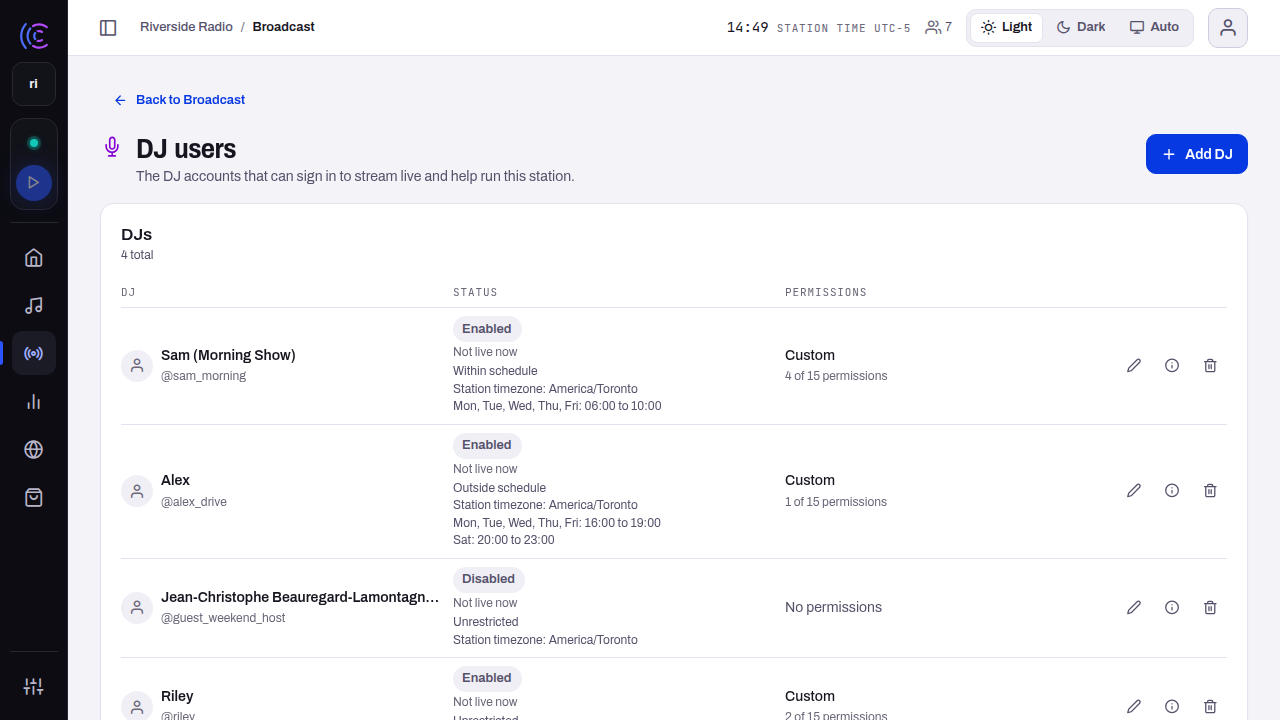 DJ users lists each account's status, broadcast slots and permissions beside its edit controls.
Connect a live encoder and troubleshoot no audio
If your live encoder connects but the player is silent, check the encoder’s audio input, input level and selected audio device. A connected encoder can send silence. Compare its Server, Port, Mount, Username and Password with Broadcast > Encoders. Use the server type, audio format and bitrate shown on the Encoders page. Check a public listen link as well as the dashboard player. On air does not prove that listeners hear sound. If there is still no audio, open Support centre and report the checks you made without a password or access token.
Available to owners and DJs with the required permissions.
- Open Broadcast > Encoders. Under Encoder connection, copy Server, Port, Mount, Username and the password available to your role. Long values wrap so you can read them.
- Owners can reveal or copy the hidden source password. DJs use their own DJ username and password; the station source password is not shown to them. An AutoDJ-only station has a notice instead of connection details.
- Enter the type and format under Settings to enter in your encoder. Use the Server Type shown on your Encoders page rather than guessing from the station name. The format and bitrate come from the station's default mount. If those details are missing, the page shows Not set instead of a suggested bitrate.
- Quick start lists the connection steps. Popular encoders offers downloads and setup guides. A guide keeps the password hidden. If your encoder needs the alternative connection, follow the port and combined-login instructions printed below those guides.
- Owners can use Go to DJ users for a DJ login. A source login can broadcast without showing as a live DJ or recording the show; a DJ login is required for that behaviour when recording is enabled.
This page has no encoder-connection status or audio-level reading. Check the encoder and a public listen link. If details fail to load, use Retry; do not reuse another station's details.
Broadcast from your browser
Available to owners and DJs with the required permissions.
- Open Broadcast > Web encoder. The page loads a separate broadcasting console for your station.
- Use your DJ login in the console and allow microphone access when your browser asks. If the microphone prompt does not appear in the embedded console, choose Open in new tab.
- Check the console's input and connection state before broadcasting. The switch from AutoDJ waits for the current song to finish. Confirm the result with a public listen link. Opening this page alone does not put you on air.
Read or download a station log
Available to owners and DJs with the required permissions.
- Open Broadcast > Logs and select an available log.
- Read its contents or use the download action. If the read fails, choose Retry; an error does not mean the station has no log entries.
- If you need help, describe the problem in Support centre. Check a log before sharing it and remove passwords, tokens and personal details. Log access does not grant permission to change the station.
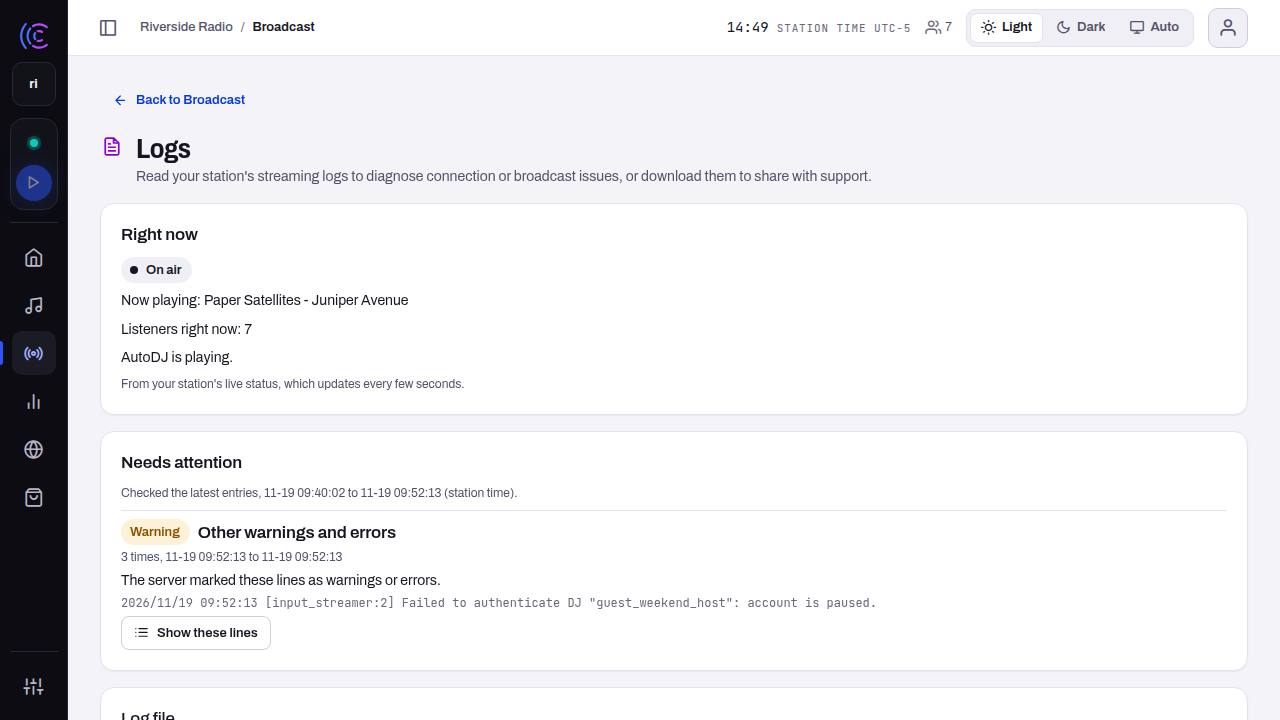 Logs separates the current on-air status from warnings and errors that need attention.

