


Check the selected station before saving. Use the controls available to your account. Read confirmations before changing a live station.
Find your way around the dashboard
- On desktop, use the sidebar. Below 1440px, it starts as an icon rail unless you have saved a choice. At 1440px and above, it starts open. Its toggle switches between the open sidebar and icon rail and remembers your choice. The dashboard uses the available width. Focus or hover a rail icon to read its name. On a phone, use the bottom navigation and More for the other sections.
- Use the theme control for light, dark or your device's automatic setting. Language is in the account menu. The EN, FR and ES menus can have different labels for the same task. The theme changes without reloading the page.
- The clock is your station's time and UTC offset, not your device's time. If the zone is missing, an owner can follow the offered settings link; a DJ asks the owner.
- Owners with multiple accounts can use Switch account. Check the selected station before making any change. A single-account owner may have no switch action; DJs ask the owner about account access.
- Support centre, Profile, Station settings and Setup wizard are in the account menu when permitted. A missing action may reflect your role, service or feature availability.
- A phone confirmation opens as a sheet. Read its title and exact action, or choose Cancel. Escape or Back closes the top dismissible sheet and returns to the page; stacked sheets close one at a time. A full reload from an account-switch sheet has a known first-Back limitation. Unsaved forms can ask before leaving.
These screenshots use sample data and English labels; what you see may differ with your language and permissions.
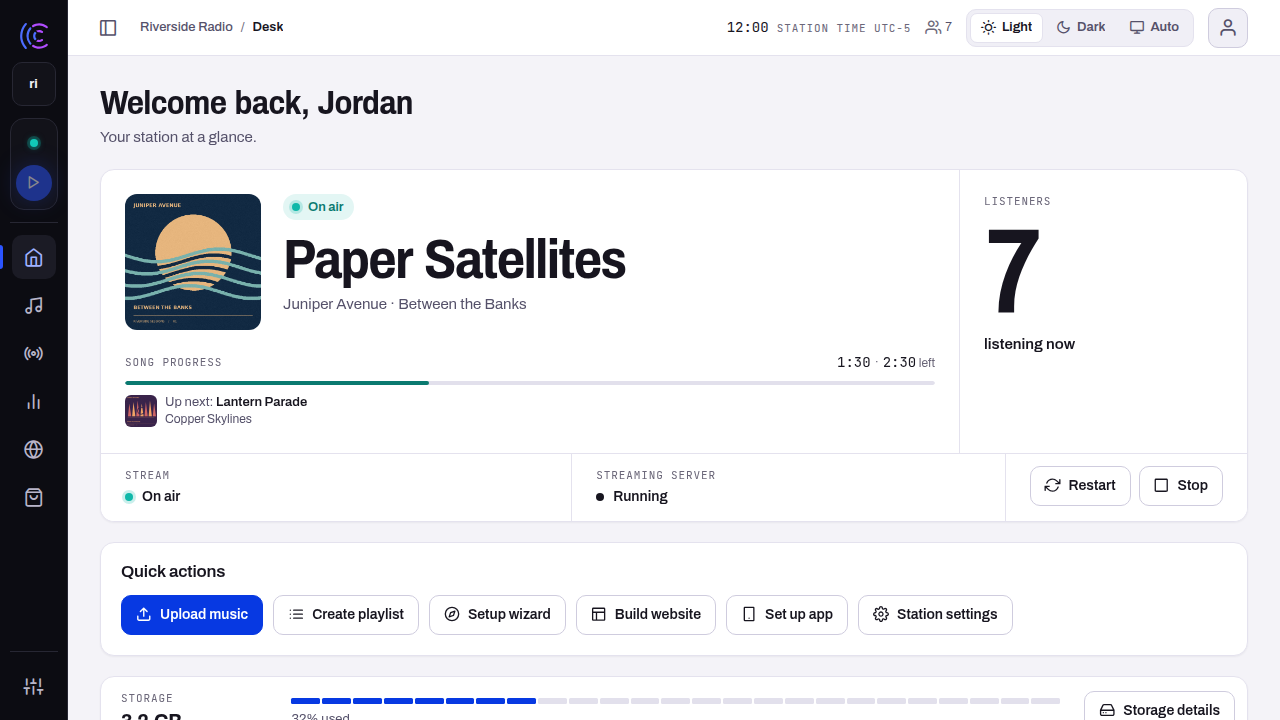 Desk shows the current song, its progress and the listener count above the station controls.
Sign in or recover access
The pages you can open depend on your account and permissions.
- Open
/login. Enter your account email address and password, then choose the sign-in button or press Enter. DJs use the login details provided by the station owner. - Read any error before trying again. Wrong credentials, a suspended account, too many attempts and a service outage have different messages. A DJ can also be refused by their account or broadcast-window rules.
- Use the password-reset link if needed, or ask the owner about a DJ login. Your account's role and service permissions still apply. Never send your password to support.
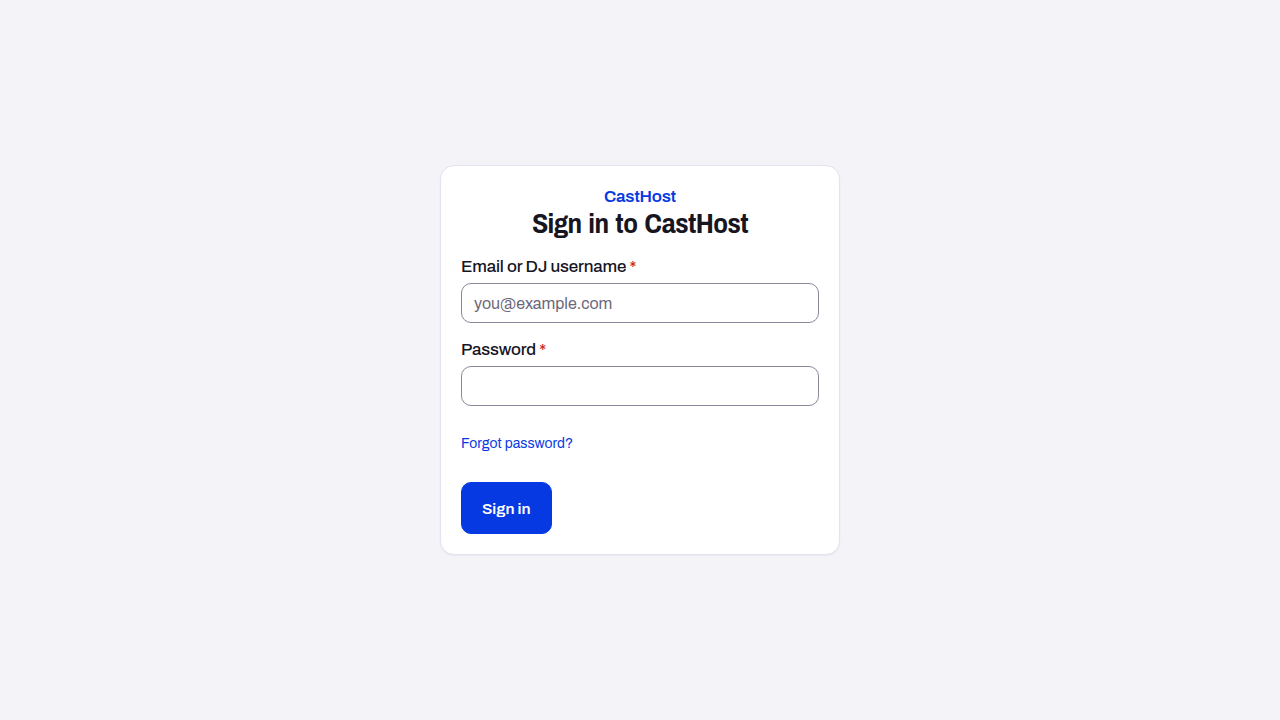 The sign-in form accepts an email or DJ username, with a password recovery link below.
Complete your station setup
Only the account owner can use these controls.
- Open Setup wizard from the account menu or the Desk checklist.
- Review each incomplete step and follow its action. Confirm the station before using any start control. Some steps open another page and need to be completed there.
- Return to the checklist and check its progress. A completed checklist is not an audio test: listen using your station's public link before sharing it.
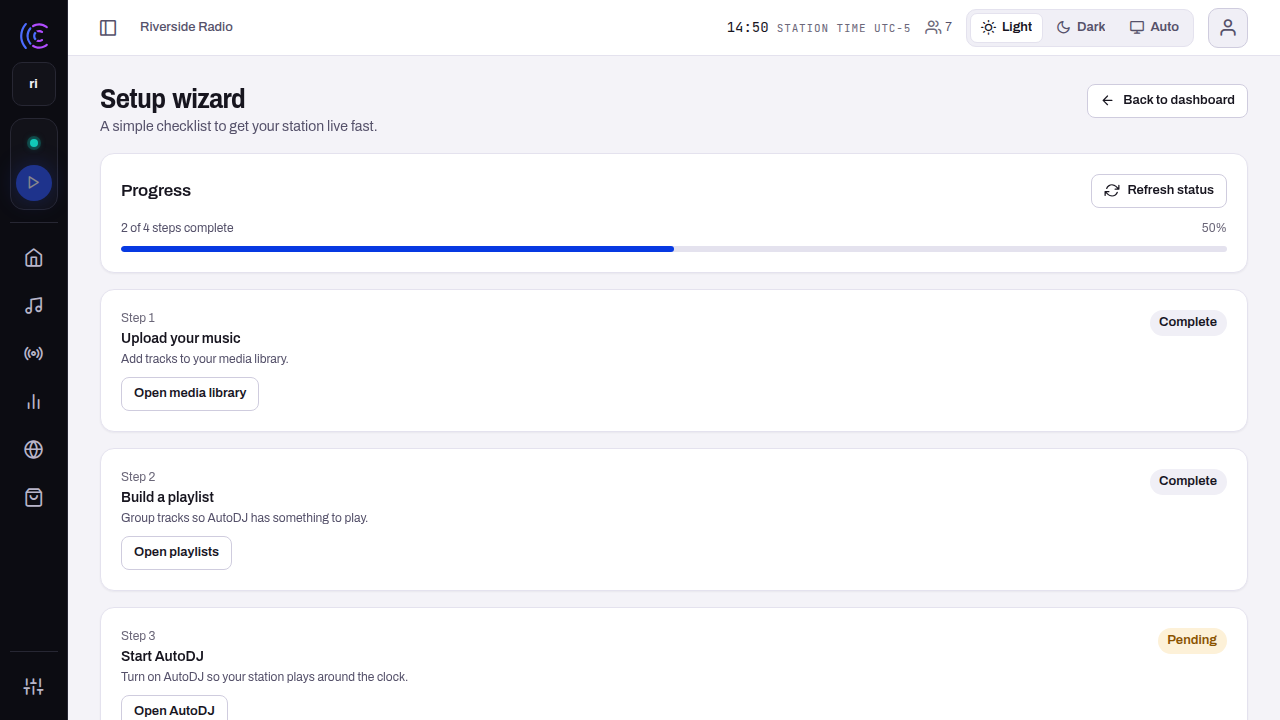 The setup checklist marks completed steps and links to the music, playlist and AutoDJ pages.
Recover from an unavailable page
The pages you can open depend on your account and permissions.
- If the dashboard says the page cannot be found, check the address or the bookmark you followed.
- Use the return-to-dashboard action and open the destination from its current menu.
- If the link still fails, report the address through Support centre without credentials. Design-gallery and diagnostic addresses are not customer tools in this build.
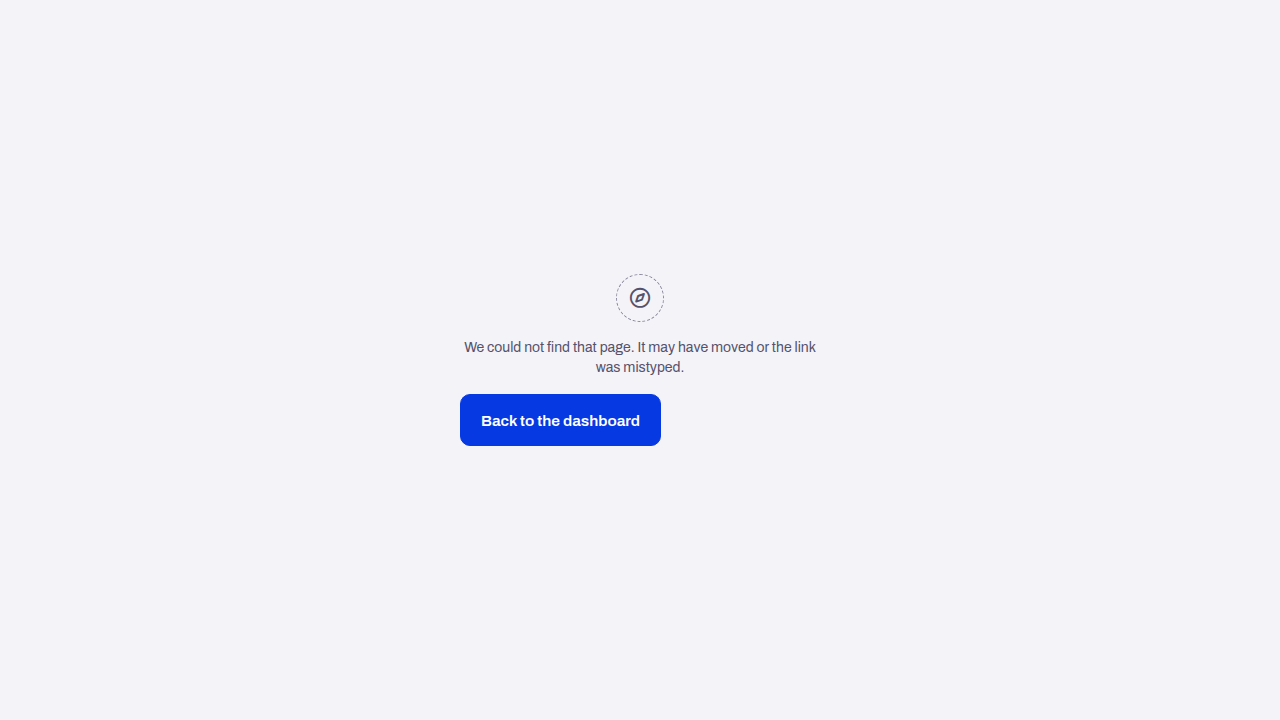 The missing-page message offers a button to return to the dashboard.

