



Check the selected station before saving. Use the controls available to your account. Read confirmations before changing a live station.
Update your own profile
The pages you can open depend on your account and permissions.
- Open Profile from the account menu. Check that you are editing your own account.
- Change the display name or profile picture where those controls are available, then save. A DJ changes their own DJ display name and picture, not another DJ's account.
- To change your password, complete the password form and save it. Keep the new password private. Profile settings do not change the station's broadcasting password.
These screenshots use sample data and English labels; what you see may differ with your language and permissions.
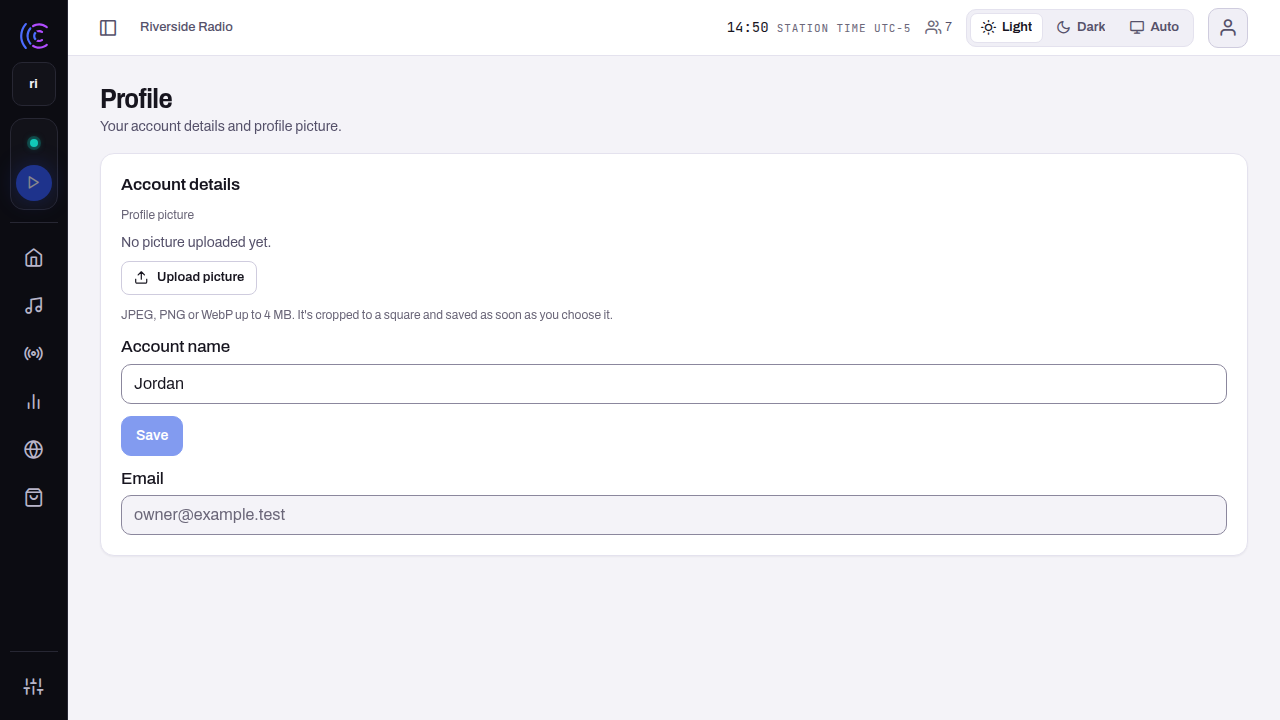 Profile places the picture upload above your account name and email details.
Create or revoke an AI access token
Only the account owner can use these controls.
- Open MCP access > Manage tokens. Review each token's name, permissions, expiry and last use before creating another.
- Choose Create token, name it and select only the abilities your client needs. Copy the generated credential when shown and keep it private; do not put it in chat or a support ticket.
- Revoke a token when it is no longer needed, using the confirmation. Revoking expired tokens is a separate batch action. A token does not grant every dashboard action, and revocation is different from disconnecting an OAuth app.
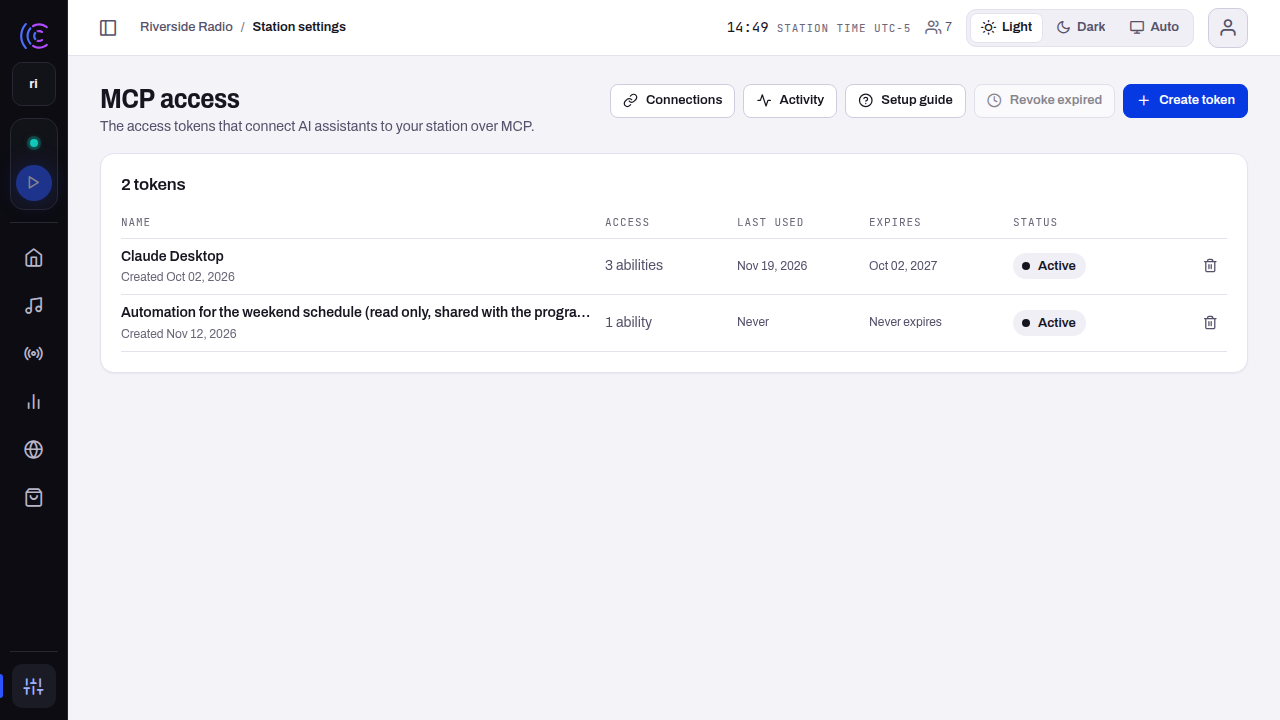 The token list shows access, last use, expiry and status without displaying the credentials.
Connect a supported AI assistant
Only the account owner can use these controls.
- Open MCP access > Setup guide and choose the client you are connecting. Follow that client's displayed connection steps.
- If you use Generate Quick Connect, it creates a real credential. Continue only when you intend to connect that client. Copy or download the setup details privately.
- Use Manage tokens and Connected apps to review access afterwards. Reconnect when credentials expire. An AI subscription is separate, and only supported tools with the granted abilities can act. Never share generated credentials with support.
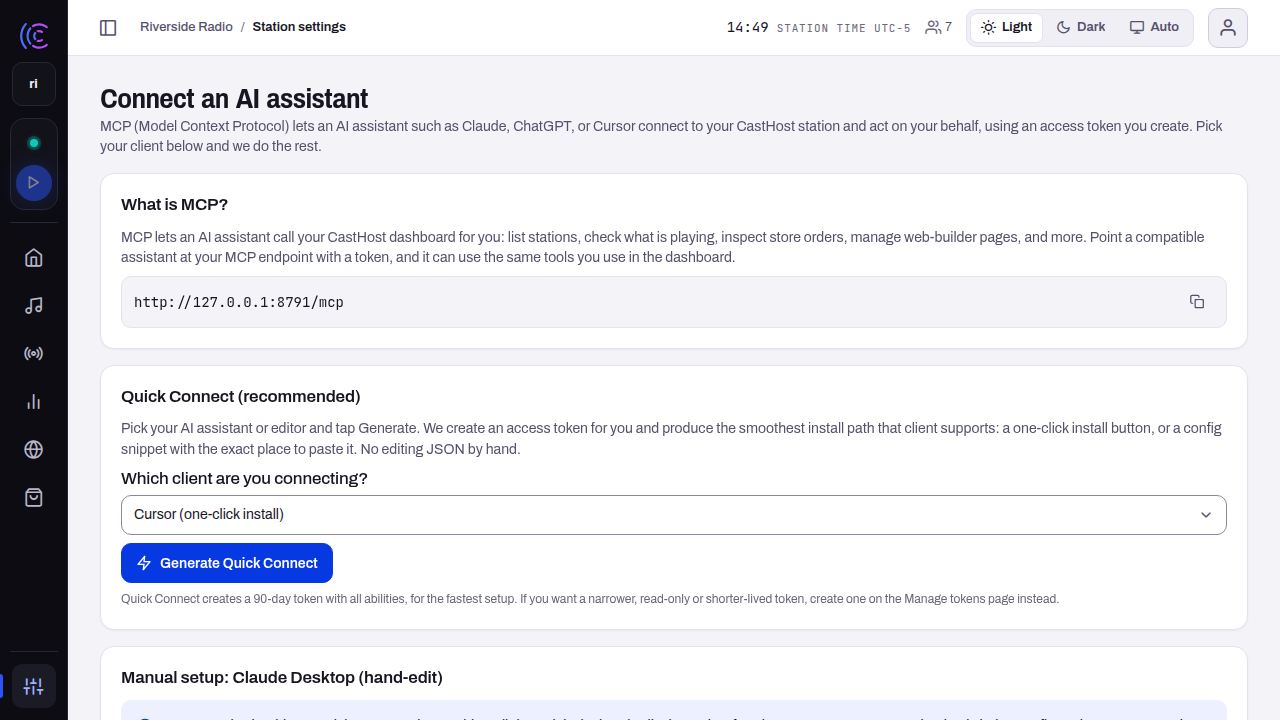 The setup guide offers a client selector and Quick Connect, which creates an access token.
Review connected AI apps
Only the account owner can use these controls.
- Open MCP access > Connected apps. Review the app, connection date, granted permissions and last-use information.
- Select the disconnect action for the app you no longer want to authorize. Check its name in the confirmation before continuing.
- Confirm that the connection disappears or reports disconnection. Personal tokens are managed separately under Manage tokens. An empty app list does not mean there are no personal tokens.
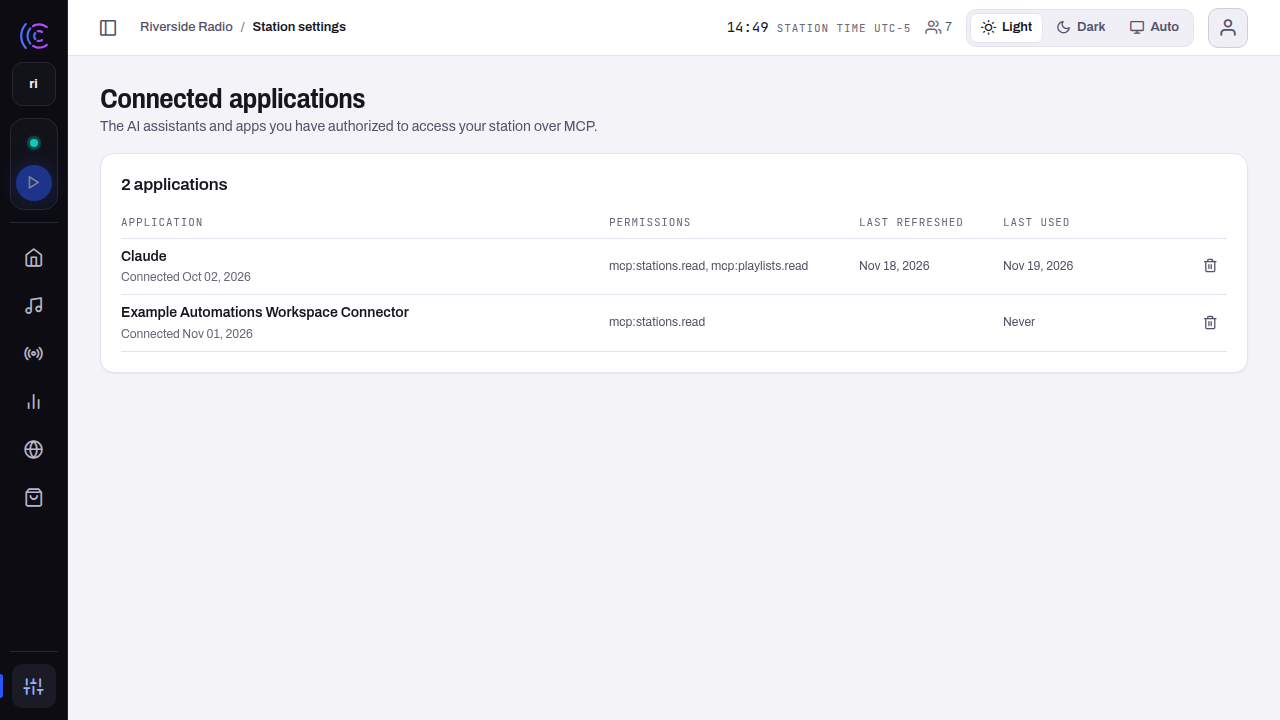 Connected applications lists each app's permissions and last use beside its disconnect control.
Check AI tool activity
Only the account owner can use these controls.
- Open MCP access > Activity and review the tool, time, caller and result fields that are available.
- Use the offered filters or pagination to locate an action. A logged request can have failed; read its result before assuming the station changed.
- If activity is unexpected, review the related token or connected app and revoke access as needed. Do not paste tokens or private tool arguments into a support message. If activity cannot be loaded, try again before concluding that no action took place.
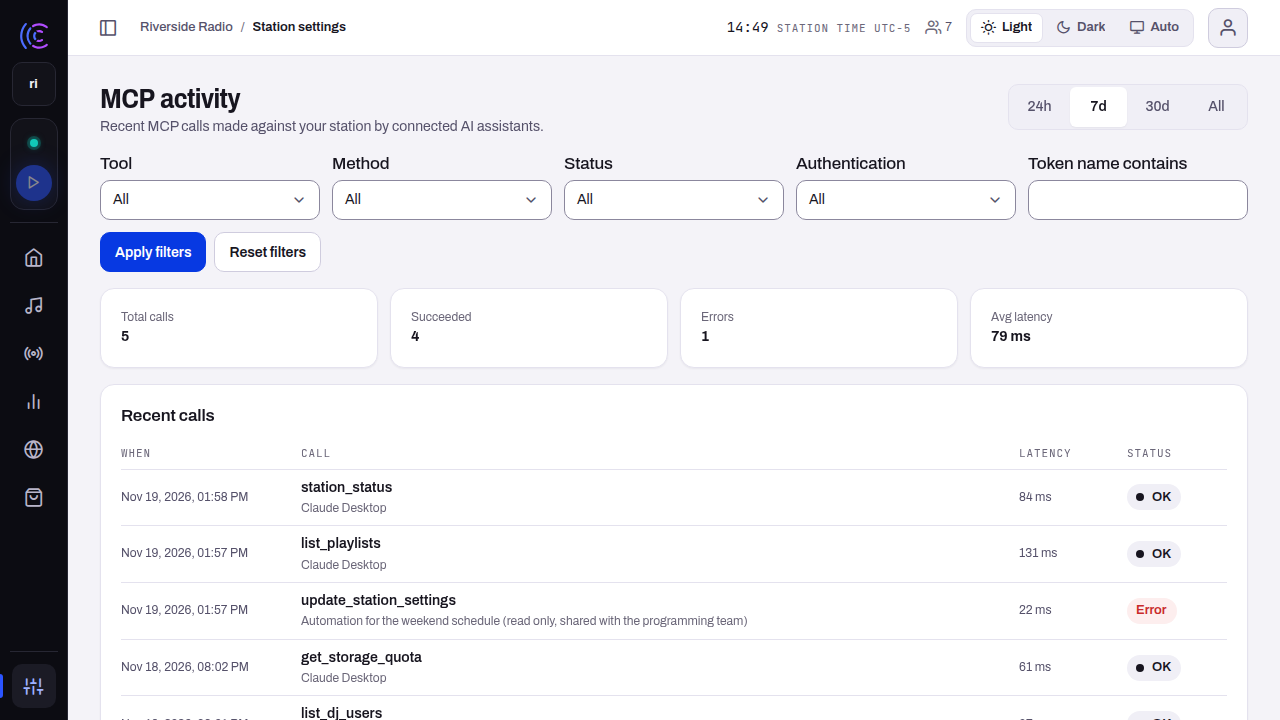 The activity list shows each tool call's result, so you can distinguish successful requests from errors.

